- What Does “Undoing Changes Made To Your Computer” Mean?
- How To Fix “Undoing Changes Made To Your Computer”?
- 1. How To Start Windows In Safe Mode?
- 2. How To Run Windows Update Troubleshooter?
- 3. How To Use System Restore?
- 4. How To Run SFC And DISM Scan?
- 5. How To Reset Windows Update Components?
- 6. How To Update Drivers And Check Disk?
- 7. When Should You Reset This PC?
- How To Prevent This Error In The Future?
- What Things Should You Remember About “Undoing Changes Made To Your Computer”?
- Frequently Asked Questions
- 1. How To Solve The Problem Of Undoing Changes Made To Your Computer?
- 2. How Long Should Undoing Changes Made To Your Computer Take?
- 3. How Do I Fix A Corrupted Windows Installation?
Fix “Undoing Changes Made To Your Computer” In Windows 10/11
Sometimes, Windows made an attempt to install updates but couldn’t. When that happens, you see the message “Undoing changes made to your computer.”
Your computer automatically starts in restart mode, and you cannot use it. Only after a below-average or an incomplete update do these types of problems appear.
This article talks about what those messages mean, but in easy terms. It will also guide you to solve your problem in a simple way.
Finally, it prevents the same issues from happening over time again and again. It also saves your computer and Windows.
What Does “Undoing Changes Made To Your Computer” Mean?
This message appears when Windows starts installing updates but fails to complete the process properly. As a safety step, Windows reverses the partial update to protect your system files.
You usually see this message during startup or while the computer restarts. The screen often says Windows is undoing changes and asks you not to turn off.
Sometimes the system repeats this screen until the rollback finishes completely. In most cases, a failed update triggers this problem unexpectedly.
Power loss or forced shutdown can interrupt updates and cause this loop. Corrupt system files can also stop Windows from finishing updates correctly.
Low storage space on the C drive often creates update installation errors. Outdated drivers may clash with updates and block proper installation.
Disabled update services like Windows Update or BITS can break the process. Sometimes antivirus software blocks update files and causes failures.
Network problems during downloads can also stop update verification. Altogether, these issues confuse Windows and force it to undo changes repeatedly.
How To Fix “Undoing Changes Made To Your Computer”?
Fixes depend on your system, yet these steps handle the most common reasons effectively. First, be patient because Windows sometimes needs extra time to finish the rollback. Let the screen run for at least forty-five to sixty minutes.
Avoid pressing the power button unless the system freezes for several hours. After the rollback completes, Windows usually starts normally without errors.
However, the messages are coming back, so start Windows using Safe Mode. Because what is not required in background programs will not be loaded here.
Safe mode only gives access to basic drivers. This helps Windows avoid conflicts caused by updates or drivers.
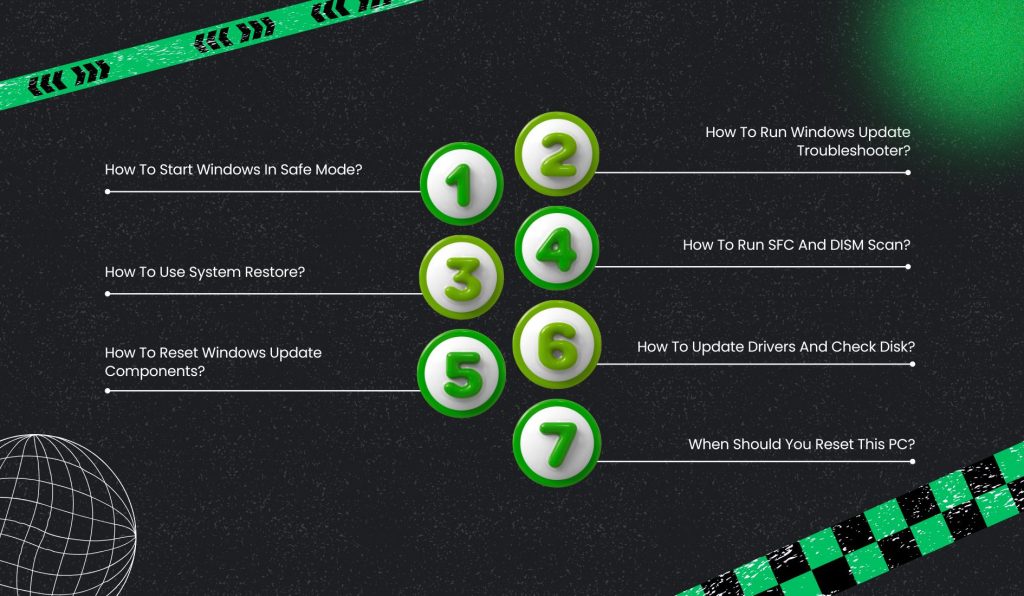
1. How To Start Windows In Safe Mode?
To begin, turn off your computer completely. Next, press the power button and interrupt the startup three times at the logo.
Soon, Windows opens the Automatic Repair screen automatically. Then, click Advanced Options to continue.
After that, take over Troubleshoot and open Advanced Options one more time. Now, go to Startup Settings and click on Restart.
Finally, select Enable Safe mode from the specific list. Once you are in, you can easily make updates or fix any type of system issues.
2. How To Run Windows Update Troubleshooter?
Windows trusts only its self tool to clear update problems.
First, open Settings and go to System.
Then click Troubleshoot and open Other Troubleshooters. Now, find Windows Update and click Run . After that, follow whatever steps appear on the screen . Windows will automatically find and fix common update or file issues.
If your computer keeps restarting, this option helps a lot. System Restore takes your PC back to a time when it worked fine.
3. How To Use System Restore?
First, open Recovery Mode using Safe Mode steps.
Then choose Troubleshoot, Advanced Options. System Restore. Select a restore point created before the update failed.
Wait until the process finishes, then restart your computer. Your personal files stay safe during this process.
4. How To Run SFC And DISM Scan?
Broken system files often cause this error. To fix them, open Command Prompt as Administrator. First, type sfc /scannow and press Enter. This checks and fixes damaged system files.
After it finishes, type DISM /Online /Cleanup-Image /RestoreHealth. DISM repairs Windows itself if anything is broken.
5. How To Reset Windows Update Components?
Sometimes Windows Update gets stuck because of old files. Open Command Prompt as Administrator.
Stop update services using simple commands. Then, delete temporary update files from the system folder.
Restart the update services. This allows Windows to rebuild fresh update files.
6. How To Update Drivers And Check Disk?
Outdated drivers can stop updates from installing properly. Open Device Manager and update major drivers.
Focus on graphics, network, and chipset drivers. Next, check your hard drive for errors.
Open Command Prompt and run a disk check command. This fixes disk problems that block updates.
7. When Should You Reset This PC?
If everything is out of your hands, then a reset is the best option you can go for.
First, open Settings on your computer. Next, click on System from the menu. Then, select Recovery from the list of options. Finally, click on Reset this PC to begin the process.
Windows will keep yourdatas safe and reinstall system files. This will give your computer new wings. It would be a fresh and working start for your computer.
How To Prevent This Error In The Future?
When you clear the issue, try the steps below so that it won’t happen again. Always go for reliable power when you are using it for updates. And also a stable internet connection is required too.
On the C drive, keep a minimum of 20 GB of storage free so that you can use it for major updates. Next, make sure you make a restore point before the installation of any new updates.
Then, on a regular basis, update drivers by using Device Manager or official manufacturer sites. Never, turn off your computer, when at the same time an update is going on.
Additionally, thoroughly troubleshoot your computer once a month. Overall, these things keep Windows safe and stable and prevent undoing changes loop.
What Things Should You Remember About “Undoing Changes Made To Your Computer”?

This message stands for Windows tried but didn’t complete those updates. Usually, this happens only when system files, settings, or updates weren’t installed correctly.
Therefore, the above are fixed, and a restart is needed. Then, SFC, DISM, and other update resets.
If they all fail, try to restore Windows or, without panic, just go for a reset. Finally, if these problems continue, Microsoft Support or any certified technician can help get out of this situation.
Frequently Asked Questions
Here are the answers to some of the most commonly asked questions about “Undoing changes made to your computer.”
1. How To Solve The Problem Of Undoing Changes Made To Your Computer?
Start Windows using Safe Mode. Run Windows Update Troubleshooter to fix common update or file issues.
Type sfc /scannow and press Enter. Type DISM /Online /Cleanup-Image /RestoreHealth to repair Windows.
2. How Long Should Undoing Changes Made To Your Computer Take?
Let the screen run for at least forty-five to sixty minutes. Windows sometimes needs extra time to finish the rollback.
Avoid pressing the power button unless the system freezes for several hours. After the rollback completes, Windows usually starts normally without errors.
3. How Do I Fix A Corrupted Windows Installation?
Open Command Prompt as Administrator. Type sfc /scannow and press Enter. Type DISM /Online /Cleanup-Image /RestoreHealth.Reset this PC to reinstall system files.
Share this article: