- What Is Error 0x8007016A?
- How to Fix Error 0x8007016A: Step-by-Step Guide
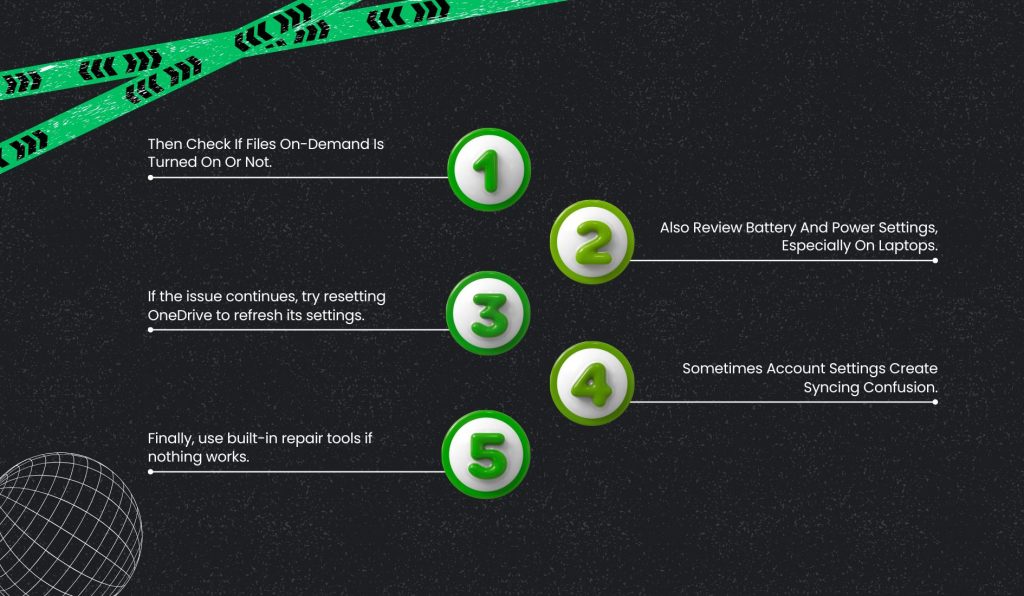
- 1. Then Check If Files On-Demand Is Turned On Or Not.
- 2. Also Review Battery And Power Settings, Especially On Laptops.
- 3. If the issue continues, try resetting OneDrive to refresh its settings.
- 4. Sometimes Account Settings Create Syncing Confusion.
- 5. Finally, use built-in repair tools if nothing works.
- What Causes Error 0x8007016A?
- Advanced Solutions And Considerations
- Preventive Measures
- Frequently Asked Questions
- 1. How Do I Fix Error Code 0x8007016A?
- 2. How Do I Delete The Cloud File Provider That Is Not Running?
- 3. How To Fix Error Code 0x800700AA?
Fix Error 0x8007016A: The Cloud File Provider Is Not Running on OneDrive
Microsoft OneDrive is the most significant cloud-based storage system that helps with hassle-free synchronization of folders between devices and the cloud.
However, the best things may be damaged and experience problems. Error 0x8007016A can be a problem that may block folder synchronization.
This tutorial will guide you in solving this problem. And will also provide easy-to-follow solutions.
In addition, the newbies and tech geeks will be able to deal with this problem. And the error will be solved smoothly.
What Is Error 0x8007016A?

Error 0x8007016A is only seen in Windows devices. When someone is using OneDrive in on-demand mode, this error happens.
As a result, this feature helps to display files in File Explorer. And that doesn’t need to be downloaded locally.
However, the error means OneDrive cannot access files because its cloud provider service has stopped running.
Consequently, users face many common problems, including the following. First and foremost, users cannot access files saved in the OneDrive folder. That means they cannot open or save files.
Next, Windows displays errors when users try to upload or insert files into OneDrive.
Finally, File Explorer can freeze up and stop working. It also may show incorrect file availability statuses.
How to Fix Error 0x8007016A: Step-by-Step Guide
Begin with the simple things. Small problems tend to resolve themselves quickly. Right-click the OneDrive cloud in the taskbar and click “Close.”
After that, open it again from Windows search or the Start menu. A quick reboot can often get stuck background services working again.
1. Then Check If Files On-Demand Is Turned On Or Not.
Right-click on the OneDrive icon to see the Settings. Select the settings options and tick the box next to Save space and download files as you use them.
This choice helps OneDrive precisely keep track of online files, and allows for more effective space-saving for you. Save the changes you made and restart your PC.
2. Also Review Battery And Power Settings, Especially On Laptops.
Battery saver modes often pause background syncing services. Open Settings, then System, and select Power and Battery.
Turn off Battery Saver or allow background activity for OneDrive. You can also choose Best Performance from the battery icon.
3. If the issue continues, try resetting OneDrive to refresh its settings.
Press Windows and R together to open the Run box. Type the reset command and press Enter.
Wait a moment, then reopen OneDrive manually if needed. This step does not delete your files.
4. Sometimes Account Settings Create Syncing Confusion.
Open OneDrive Settings and go to the Account tab. Unlink your PC and sign in again. After reconnecting, allow files to resync properly.
5. Finally, use built-in repair tools if nothing works.
Microsoft offers a Support and Recovery Assistant for OneDrive problems. You can also run a system scan using Command Prompt.
These tools fix damaged files affecting Microsoft OneDrive.
What Causes Error 0x8007016A?
People usually do not pay attention to the issues that cause Error 0x8007016A.
One thing to consider is that OneDrive will not be able to open or sync files that are only in the cloud if the Files On-Demand option is turned off.
If your OneDrive settings are not set up correctly, the Cloud File Provider service may not work properly.
Sometimes, OneDrive may not work correctly with files after a Windows update.
The settings for saving power or optimizing the battery on laptops can also stop OneDrive’s background process for a short time.
Lastly, if the OneDrive app is old or broken, it will not be able to start the services that OneDrive needs to.
These issues cause OneDrive to have trouble connecting to the cloud and accessing files without any problems, which is the main issue with OneDrive.
Advanced Solutions And Considerations

If the above fixes do not work, try the advanced yet simple options.
Temporarily disable the antivirus program. Antivirus apps, at times, interfere in the background with cloud syncing.
Disable it for a while to see if it syncs. Make sure you activate protection after testing.
Next, make a new user profile. A corrupted profile may stop the functionality of Windows features. In Settings, select Accounts, then navigate to Other users.
Create another user by following the on-screen steps. Once you complete it, sign in and set up OneDrive again.
Reach out to Microsoft Support. Your final option should be to reach out to Microsoft’s support team.
Let us know when the error began and what fixes you tried. If you can, share error screenshots or details.
Preventive Measures
To avoid this error later, follow a few simple and practical habits. First, keep Windows and OneDrive updated on a regular basis.
Also, avoid PC cleaner tools that may remove important cloud settings. Next, check power-saving options so they do not stop background syncing. Finally, use a trusted antivirus that works smoothly with cloud services.
What Should We Keep In Mind About
Certainly, Error 0x8007016A can hinder the path of any work. A clear and structured approach will definitely resolve it.
First, start with simple restarts, then go for advanced resets and system configuration checks.
Most significantly, systematic troubleshooting surely helps to identify how to do it in a faster and more effective way.
Meanwhile, maintaining good system hygiene, monitoring power, and updating settings keeps OneDrive running smoothly.
Finally, if you read this guide with proper care, then you will be able to restore all cloud files and their access via OneDrive.
Frequently Asked Questions
Here are the answers to some of the most commonly asked questions about
1. How Do I Fix Error Code 0x8007016A?
Right-click the OneDrive cloud in the taskbar and click “Close.” After that, open it again from Windows search or the Start menu.
Then check if Files On-Demand is turned on or not. Press Windows and R together to open the Run box.
2. How Do I Delete The Cloud File Provider That Is Not Running?
Open OneDrive Settings and go to the Account tab. Unlink your PC and sign in again.
After reconnecting, allow files to resync properly. Reset OneDrive to refresh its settings.
3. How To Fix Error Code 0x800700AA?
Begin with the simple things. Small problems tend to resolve themselves quickly.
You can also run a system scan using Command Prompt. These tools fix damaged files affecting Microsoft OneDrive.
Share this article: